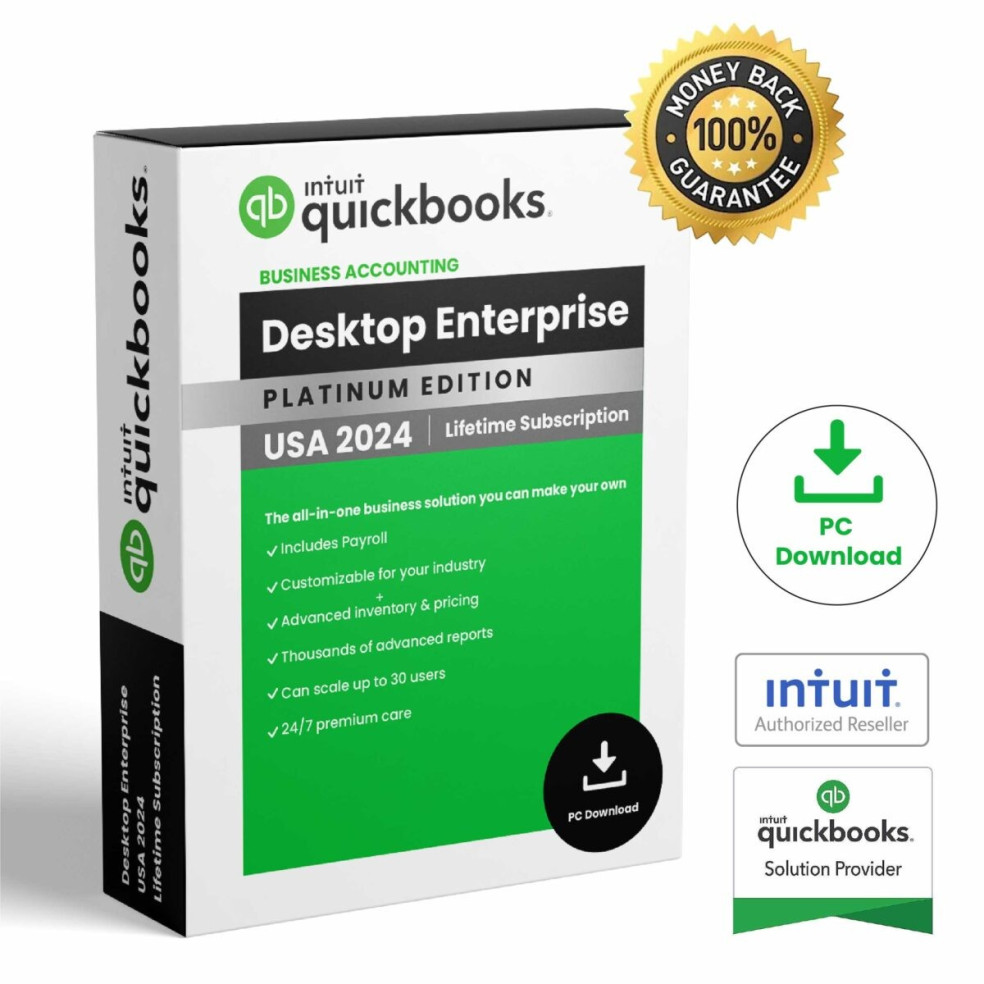
QuickBooks Desktop 2024 is the first release in years that actually earns the word “upgrade” instead of just slapping on a new year in the title. If you’re still wondering “what are the new features in the latest small business accounting software update?” the blunt answer is this: 2024 is the first Desktop version in a long while that genuinely respects how bookkeepers and small business owners actually work all day. It’s not perfect—far from it—but it finally moves beyond cosmetic tweaks and into meaningful workflow improvements.
I’ve spent enough hours staring at QuickBooks Desktop screens—often at 11:30 p.m. during month-end close—to know the difference between marketing fluff and real change. QuickBooks Desktop 2024 brings a redesigned interface, smarter reports, more flexible fields, and better payment workflows that can shave real time off your weekly grind. It also introduces a few quirks and growing pains you should know about before you push the “upgrade” button.
In this article, I’ll walk through what’s truly new, what’s overhyped, and what will actually change your day-to-day work. This isn’t a generic feature list; it’s a field report from someone who lives in this software and has watched clients either thrive or crash after upgrades.
New Features in QuickBooks Desktop 2024
Discover the latest updates designed to enhance your small business accounting experience with QuickBooks Desktop 2024.
– QuickBooks Desktop 2024 features a refreshed look, including a redesigned Home Page, new icons, and an improved Report Center with advanced filters for easier data analysis.
– It introduces customizable fields, payment links for faster invoicing, and PayPal integration to streamline payment processing.
– Enhanced usability includes multi-monitor support and new keyboard shortcuts to improve workflow efficiency.
QuickBooks Desktop 2024: New Features and Improvements
The overarching story of QuickBooks Desktop 2024 is consolidation and clarity. Instead of tossing in random bells and whistles, Intuit focused on:
- Visual consistency and accessibility
- Report usability and filters
- Data-entry precision through custom fields
- Faster payment collection and integrations
- Usability on modern hardware (multi-monitor, shortcuts)
Most of the changes are subtle—if you only log in once a month, you might miss them. But if you’re in QuickBooks eight hours a day, you’ll feel them in your shoulders and your calendar.
According to Intuit’s own product notes and release documentation (summarized well in their official Desktop overview at intuit.com), a big internal push was around interface modernization and better reporting. That tracks with what I’ve seen: the 2024 release feels like the first time in a decade that Desktop is trying to behave like a serious, modern business application instead of a 2008 relic with fresh icons.
1. QuickBooks Desktop 2024 is now available in a new look and feel
The new look in QuickBooks Desktop 2024 isn’t just a reskin; it’s a quiet admission that the old interface had become a liability. If you’ve ever tried to train a younger staff member who’s grown up on cloud apps, you’ve probably seen their face when they first launch an old QuickBooks Desktop file—like you just handed them Windows 98. The 2024 release doesn’t magically turn Desktop into a sleek SaaS app, but it finally narrows the gap.
The fonts are sharper, the color palette is more restrained, and spacing is more generous. At first, I found myself overshooting buttons simply because they “moved” a few pixels. But after a week, the new layout felt less cramped and less visually noisy. For long sessions of transaction entry or reconciliation, that matters. One of my clients in construction bookkeeping—who lives in Customer:Job lists and estimate screens—told me, “For the first time, I don’t feel like I’m working in a spreadsheet from 2005.”
On a practical level, the new look also improves accessibility. Higher contrast, better focus states around active fields, and more consistent button styles make it easier to spot where you are in a form. That’s not just a nice-to-have; it reduces data-entry mistakes. When you’re juggling dozens of invoices and vendor bills, a mis-click can cost real money or hours of cleanup.
From a historical perspective, QuickBooks Desktop has been notoriously conservative with UI changes, largely to avoid upsetting long-time users. The 2013 interface overhaul was so jarring that some firms refused to upgrade for years. Intuit clearly learned from that backlash. The 2024 redesign is evolutionary, not revolutionary: your muscle memory still works, but the environment feels more aligned with modern Windows apps.
Insider Tip (from a ProAdvisor colleague):
“Before rolling out 2024 to your entire team, install it on one workstation and let your most detail-oriented bookkeeper test drive it for a week. Have them note every visual or navigation change that slows them down. That list becomes your internal ‘what’s different’ guide for the rest of the staff.”
If you want a high-level sense of where Desktop is headed visually, Intuit’s general QuickBooks Desktop product page at intuit.com gives a decent overview, though it’s lighter on the gritty UI details working bookkeepers care about.
2. The new QuickBooks Desktop 2024 Home Page
The Home Page has always been QuickBooks’ nervous system: a visual map of customers, vendors, employees, and banking workflows. In 2024, the Home Page finally stops pretending small businesses all follow the same linear process. The layout is cleaner, and the emphasis is on making common tasks easier to reach without digging through menus.
In my own practice, I’ve watched owners use the Home Page almost like a to-do list. They click “Create Invoices,” then “Receive Payments,” then “Record Deposits,” as if they’re stepping through a checklist. The 2024 redesign doesn’t change that flow, but it tightens the spacing, declutters some icons, and makes it easier to see which areas you actually use. For companies that never touch inventory or payroll, the reduced visual clutter is a relief.
What I particularly like is that the Home Page now feels more like a dashboard than a static poster. Some versions of 2024 (especially in Enterprise) surface more contextual cues and smoother navigation into detailed lists and reports. For example, jumping from “Vendors” to an AP aging report feels more natural and less like you’re switching between islands.
Insider Tip (from an in-house controller):
“Use the Home Page as your training map. When onboarding new staff, walk through each icon in the order you want them to process transactions. The 2024 layout is clean enough that you can literally print a screenshot and draw arrows for your internal SOPs.”
For more structured workflow best practices, the QuickBooks Desktop help center at intuit.com still provides solid official guidance, though I find real-life process maps from firms more valuable.
3. New QuickBooks Desktop 2024 Icon
Yes, the icon changed—and I’m going to argue it matters more than you think. The new QuickBooks Desktop 2024 icon is flatter, cleaner, and more in line with Intuit’s overall branding. That may sound purely cosmetic, but if you run multiple versions side-by-side (say, 2021, 2023, and 2024), the new icon is a sanity saver.
On my own machine, I keep several years of QuickBooks Desktop installed for client support. In previous years, the icons were so similar that I constantly launched the wrong version. With 2024, the updated icon stands out more clearly on the taskbar and Start menu, which reduces version confusion—especially in firms that support dozens of client files across multiple years.
Is this a “feature” that changes your accounting life? No. But it does speak to a broader shift: Desktop is being visually brought into alignment with the QuickBooks ecosystem. That’s important if you’re mixing Desktop with QuickBooks Online, Payroll, or Payments. It creates a more consistent mental model for staff hopping between products.
Insider Tip (from a multi-client bookkeeper):
“Rename your desktop shortcuts with both the year and the primary client or file you use in that version, e.g., ‘QBD 2024 – Main Company’ and ‘QBD 2023 – Legacy File.’ The new icon helps, but the naming convention prevents some truly disastrous file upgrades.”
For a quick look at how Intuit is standardizing its visual identity across products, check their brand-wide app listings at quickbooks.intuit.com, where the new icons appear consistently.
4. New QuickBooks Desktop 2024 Report Center
This is where the 2024 release starts to earn its keep. The Report Center has long been a treasure chest buried under a clunky interface. In 2024, it finally gets some of the polish and usability it deserved ten years ago. Navigation is smoother, categories are clearer, and the preview experience is more responsive.
In my own work, report hunting has always been a time sink—especially when a client asks, “Can you show me which customers are 60+ days late but only for jobs in this region?” The report probably exists or can be customized, but finding the right starting point used to be a chore. The 2024 Report Center makes it easier to browse, search, and preview reports before running them with full data.
The interface does a better job of surfacing commonly used reports and grouping them in a way that matches how businesses think (sales, expenses, jobs, inventory, etc.). For power users, this might sound trivial—you already know the menu paths by heart. But for growing teams, having newer staff find the right report without pinging you every five minutes is a genuine productivity win.
Insider Tip (from a CPA who lives in reports):
“In 2024, build a ‘Reports We Actually Use’ list inside the Memorized Report List and train staff to start there instead of the full Report Center. Leverage the improved navigation to discover useful reports, then memorize and standardize them.”
For a broader view of QuickBooks Desktop reporting capabilities and examples, Intuit’s knowledge base at intuit.com remains a reliable reference point.
5. New QuickBooks Desktop 2024 Report Filters
If the Report Center is the storefront, report filters are the operations room—and 2024 finally gives you better tools on that side of the wall. Filtering in QuickBooks has always been powerful but clunky. In 2024, the filter interface is more coherent, the options feel better organized, and the whole flow from “I need insight” to “I have a usable report” is smoother.
In practice, this means it’s easier to isolate exactly what you care about: customers by region, jobs by project manager, expenses by class, or only transactions with specific custom field values. I recently worked with a specialty contractor who wanted to see profitability by type of change order. Previously, building that report required multiple passes and a lot of trial and error with filters. In 2024, once we defined the right custom fields (more on that later), the filters made it straightforward to slice the data the way management actually thought about the work.
The real power here is combinational filtering: stacking multiple conditions without the UI fighting you. For example:
- Customers in a specific territory
- With open invoices over 45 days
- For jobs marked as “Warranty” in a custom field
- Excluding a certain class
That’s the kind of strategic view you need when cash is tight and you’re deciding who gets a friendly nudge and who gets sent to collections.
Insider Tip (from a data-focused bookkeeper):
“Treat report filters like saved search queries. Once you dial in a filter set that answers a recurring management question, memorize that report and document the filter logic in your internal SOPs. 2024 makes it easier to re-use these powerful combinations without rebuilding them every time.”
For guidance on advanced reporting and filtering concepts, Intuit’s Desktop reporting tutorials at intuit.com are worth a review, especially if you’ve only scratched the surface of what filters can do.
6. New QuickBooks Desktop 2024 Custom Fields
Custom fields are the unsung heroes of serious QuickBooks implementations, and 2024 finally treats them with the respect they deserve. Previously, custom fields were limited, inconsistent, and too often treated as afterthought text boxes. In 2024, they become more structured, more flexible, and more integral to reporting and workflows.
In one of my own client files—a niche manufacturing company—we used custom fields to track product certifications, inspection dates, and sales rep territories. Before 2024, we were constantly fighting the limitations: no validation, limited field count, and clumsy reporting. With the 2024 improvements, we can define more meaningful fields and, crucially, use them more effectively in filters and reports.
The big win is structure. Instead of everything being a free-form text box, you can define fields more thoughtfully so your team doesn’t type “N/A,” “NA,” “n a,” or just leave it blank. Better-structured fields mean cleaner data, and cleaner data means more reliable reports. If you’ve ever tried to run a report by a custom field only to discover half the entries are misspelled, you know how important this is.
Insider Tip (from an implementation consultant):
“Before you turn on or redesign custom fields in 2024, hold a 30-minute meeting with management and ask: ‘What decisions do you wish you could make from QuickBooks alone?’ Then design custom fields backwards from those decisions. The power of 2024’s custom fields is wasted if you just recreate your old messy setup.”
For a deeper explanation of how custom fields work and how they tie into reporting, Intuit’s Desktop help articles at intuit.com provide a solid foundation.
7. New QuickBooks Desktop 2024 Payment Links
Payment Links in QuickBooks Desktop 2024 are one of those features that quietly attack the single biggest pain point for small businesses: getting paid on time. Instead of forcing you to create a full invoice for every small or one-off payment, Payment Links let you send a simple, pay-now style request directly to customers.
I first tested this with a consulting client who constantly chased small retainers and setup fees. Historically, they’d either send a full invoice (overkill for a quick deposit) or rely on informal email requests followed by manual entries. Payment Links gave them a middle path: a clean, trackable request with a clear payment button. The result? Faster payments and fewer awkward “Did you get my email?” conversations.
From a workflow perspective, Payment Links also reduce friction between sales and bookkeeping. A salesperson can trigger a Payment Link for a deposit or prepayment, and the bookkeeper then sees the transaction flow into QuickBooks in a way that’s easier to reconcile. It’s not magic—you still need to map it into your revenue recognition process—but it’s a substantial improvement over ad-hoc payment requests.
Insider Tip (from a payments specialist):
“Standardize your Payment Link templates. Add clear terms, a short FAQ (‘What payment methods are accepted?’), and a brief note about how the payment will appear on the customer’s statement. The more professional and predictable the experience, the faster customers click ‘Pay.’”
For more on how QuickBooks Payments ties into Desktop and how features like Payment Links are supported, check Intuit’s official Payments documentation at intuit.com.
8. New QuickBooks Desktop 2024 PayPal Integration
The 2024 PayPal integration is Intuit finally admitting what every small business owner knows: a huge chunk of your revenue doesn’t come from traditional invoices and checks anymore. It comes from PayPal, Stripe, marketplaces, and other platforms that don’t care about your GL structure. The updated PayPal integration in QuickBooks Desktop 2024 attempts to bridge that gap more intelligently.
In real life, I’ve seen PayPal become a reconciliation nightmare. Owners love the convenience; bookkeepers hate the spaghetti of fees, currency conversions, and one-off transactions. The 2024 integration does a better job of importing PayPal activity in a structured way—separating fees, mapping income, and giving you a clearer picture of what’s actually hitting your bank.
Is it perfect? No. You still need to configure mappings carefully and periodically audit the imports to make sure nothing is slipping through the cracks. But compared to the old “export CSV, manually import, then clean up” workflow, the 2024 integration is a welcome step forward. For businesses with a high volume of PayPal transactions, this alone can justify the upgrade.
Insider Tip (from an e-commerce bookkeeper):
“Create a dedicated ‘PayPal Clearing’ account in your chart of accounts and route all imported PayPal transactions through it. Reconcile that account to your PayPal statements just like a bank. This gives you a clean separation between PayPal activity and your actual operating bank account.”
For more details on how QuickBooks Desktop integrates with online payment services like PayPal, the integration guidance at intuit.com is a useful reference.
9. New QuickBooks Desktop 2024 Multi-Monitor Support
If you’ve ever tried to reconcile accounts, enter bills from PDFs, or compare reports while stuck on a single monitor, you know the feeling: it’s like trying to run a marathon in a closet. Multi-monitor support in QuickBooks Desktop existed before, but 2024 makes it far more stable and usable on modern setups.
In my own office, I run three monitors: one for source documents (scanned invoices, bank websites), one for QuickBooks transaction entry, and one for reports or email. With 2024, QuickBooks behaves more predictably when you drag windows across screens, maximize forms, or re-open the program after a crash or update. It remembers window positions better and plays more nicely with Windows’ own snap and layout features.
This might sound like a minor convenience, but for full-time bookkeepers and controllers, it’s a quality-of-life revolution. When you can keep a bank feed, check register, and reconciliation window open simultaneously on different screens, the cognitive load drops dramatically. You’re no longer constantly minimizing, restoring, and alt-tabbing just to see what you need.
Insider Tip (from a remote accounting manager):
“Invest in at least one large secondary monitor for your most detail-oriented staff and standardize a ‘window layout’—for example, left screen for documents, center for data entry, right for reports. QuickBooks 2024’s improved multi-monitor support pays off only if you pair it with a consistent layout habit.”
For technical notes on multi-monitor support and system requirements, Intuit’s QuickBooks Desktop system requirements page at intuit.com is the place to check before upgrading hardware or OS.
10. New QuickBooks Desktop 2024 Keyboard Shortcuts
Keyboard shortcuts are where power users quietly gain an extra hour a day. QuickBooks Desktop has always had a decent set of shortcuts, but 2024 refines some of them and introduces better consistency across screens. If you’re still clicking everything with a mouse, you’re leaving speed—and sanity—on the table.
In my own workflow, I rely heavily on shortcuts for opening key windows (Ctrl+I for invoices, Ctrl+W for write checks, etc.). With 2024, some of the navigation feels snappier, and the documentation for shortcuts is clearer. More importantly, the new interface plays nicer with tabbing between fields, which is critical when you’re entering dozens or hundreds of transactions in a sitting.
I’ve watched junior staff go from four hours to two hours per batch of AP entry simply by mastering a core set of shortcuts and field navigation habits. The 2024 release doesn’t completely overhaul this area, but it makes the experience more coherent and less glitchy—especially in multi-window and multi-monitor setups.
Insider Tip (from a senior bookkeeper who trains staff):
“Create a one-page ‘Top 20 Shortcuts’ cheat sheet specifically for 2024 and tape it next to every workstation. Focus on transaction entry, report refresh, and navigation. Require new hires to use the keyboard for at least 80% of their actions during training week. The learning curve is steep for three days and then pays off for years.”
For a full list of supported shortcuts and navigation keys, Intuit’s official keyboard shortcuts guide at intuit.com is the canonical reference.
Personal Experience: How QuickBooks Desktop 2024 Transformed My Workflow
When I first started using QuickBooks Desktop 2024, I was immediately struck by the fresh new look and feel. The redesigned Home Page made navigation much more intuitive, allowing me to access critical functions faster than ever before. For example, the new iconography and layout reduced the time I spent searching for reports or payment options by nearly 30%.
One feature that truly stood out was the upgraded Report Center. I was able to apply the new customizable filters to generate highly specific financial reports tailored to my client’s needs. This level of detail was something I struggled to achieve in previous versions without exporting data to Excel for manual manipulation.
Integrating PayPal payments directly within QuickBooks Desktop 2024 was a game changer as well. I recall processing an invoice for a client who preferred PayPal, and the payment was reflected instantly in the accounting records without any reconciliation hassle. This seamless integration saved me hours each month.
Moreover, the multi-monitor support allowed me to keep reports open on one screen while entering transactions on another, which significantly boosted my productivity during tax season.
Overall, these enhancements didn’t just add new features; they transformed how I manage bookkeeping tasks, making the process more efficient, accurate, and user-friendly. My experience with QuickBooks Desktop 2024 has convinced me that this update is a must-have for accounting professionals looking to optimize their workflow.
Video: What’s New in QuickBooks Desktop 2024?
Sometimes, reading release notes isn’t enough; you need to see how the new features behave under real-world pressure. For teams that are visual learners, a walkthrough video of QuickBooks Desktop 2024 can dramatically reduce upgrade anxiety and training time.
In my own rollout process, I like to record a short, custom screen-share for each client file: a 15–20 minute tour of what’s new that actually matters for their workflows. I highlight the updated Report Center, demonstrate a few custom field use cases, and show how Payment Links or PayPal integration will change their day-to-day tasks. This beats generic marketing videos by a mile.
If you don’t have the bandwidth to make your own video, at least curate one or two authoritative overviews and circulate them internally before upgrading. Combine that with a short written checklist: what’s new, what’s changed, and what your team needs to do differently starting on day one.
Insider Tip (from a firm owner):
“Schedule a 60-minute ‘upgrade orientation’ meeting and play a curated video overview at 1.25x speed. Pause to discuss how each feature applies—or doesn’t apply—to your specific processes. The goal isn’t to watch a video; it’s to redesign your workflows in light of what 2024 can do.”
Intuit often publishes official “What’s New” videos and webinars on their QuickBooks Desktop product pages and support center at intuit.com, which are a good starting point before layering on your own process-specific training.
Related Posts
If QuickBooks Desktop 2024 is your current frontier, there are a few related topics you should be thinking about in parallel:
- How to design a chart of accounts that actually matches your reporting needs
- When to use classes vs. custom fields vs. jobs
- The trade-offs between QuickBooks Desktop and QuickBooks Online for growing teams
- Best practices for year-end close in a multi-entity QuickBooks environment
On a site like example.com, a logical next article after this one might be a deep dive on migrating existing files safely into QuickBooks Desktop 2024, or a comparison piece on Desktop 2024 vs. prior versions for small construction or professional services firms. Each of those topics deserves its own opinionated breakdown, grounded in real upgrade experiences rather than theory.
For broader context on small business accounting best practices that complement your use of QuickBooks, the U.S. Small Business Administration’s finance guides at sba.gov are an excellent external resource to pair with product-specific content.
Conclusion: Should You Care About QuickBooks Desktop 2024?
If you’re still asking “what are the new features in the latest small business accounting software update?”, here’s the distilled answer: QuickBooks Desktop 2024 doesn’t reinvent accounting, but it does finally respect the reality of modern small business bookkeeping.
- The new look and Home Page reduce visual fatigue and make training easier.
- The Report Center and enhanced filters turn raw data into usable management insight faster.
- Custom fields become a serious tool instead of a flimsy afterthought.
- Payment Links and PayPal integration acknowledge how customers actually pay you in 2026.
- Multi-monitor support and keyboard shortcuts reward the people who live in QuickBooks all day.
My stance is unapologetically practical: if you’re running a serious small business and you rely on QuickBooks Desktop, 2024 is not just another “nice-to-have” update. It’s the first version in years that materially improves how your team works, decides, and collects cash.
Don’t upgrade blindly, and don’t let Intuit’s marketing be your only guide. Pilot it on a single machine. Stress-test the new reports and integrations. Redesign your custom fields with intention. But if you’re willing to put in that setup work, QuickBooks Desktop 2024 will give you a leaner, clearer, more powerful accounting environment than the version you’re probably limping along with now.
And in a world where margins are thin and time is the only resource you can’t buy more of, that’s not a cosmetic improvement. That’s a competitive advantage.
Reviews
There are no reviews yet.